


- Introduction to the Internet
The Internet is a global network of interconnected computers that communicate using standard protocols. Every device connected to the internet needs a unique address to identify itself.
- What Is a Domain Name?
A Domain Name is a human-readable address used to access a website on the internet. Example : www.codekilla.com
- Why Domain Names Are Needed
- Easy to remember
- Represents brand identity
- Replaces numeric IP addresses
- Essential for businesses and professionals
- Structure of a Domain Name
|
Part |
Example |
Full Form |
|---|---|---|
|
Subdomain |
www |
World Wide Web (commonly used, but technically optional) |
|
SLD |
codekilla |
Second-Level Domain |
|
TLD |
.com |
Top-Level Domain |
|
“www” stands for World Wide Web, but it's not required for a website to function. Many modern sites work without it ( |
||
- Types of Domain Extensions
gTLD – Generic Top-Level Domain
- .com – Commercial
- .org – Organization
- .net – Network
- .tech – Technology
- .ai – Artificial Intelligence
ccTLD – Country Code Top-Level Domain
- .in – India
- .us – United States
- uk – United Kingdom
nTLD – New Top-Level Domain
- .dev – Developer
- .io – Input / Output
- .design – Creative field
- What Is DNS?
DNS – Domain Name System
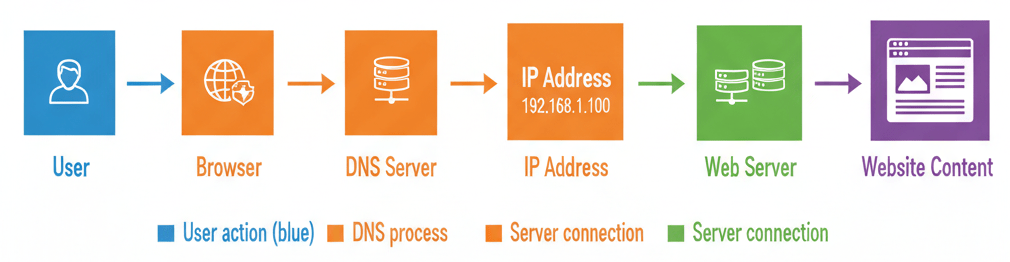
DNS converts domain names into IP addresses so browsers can locate web servers.
codekilla.com → 192.168.1.1
DNS works like the Internet’s phonebook.
- How DNS Works (Step-by-Step)
- User types a domain name. Example: www.codekilla.com
- Browser queries DNS server. The browser asks the DNS resolver: “What is the IP address for this domain?”
- DNS returns IP address. Example: 192.0.2.1
- Browser connects to server. Using the IP address, the browser establishes a connection with the web server.
- Website loads. The server responds with the website content, and the page is displayed.
- What Is an IP Address?
IP Address – Internet Protocol Address
An IP address uniquely identifies a device on a network.
Methods to Find a Domain’s IP Address
- Open Command Prompt - Press Windows Key + R - Type cmd and press Enter
- Type nslookup codekilla.com
- DNS server queried
- IP address returned
- Result displayed in Command Prompt
Note: If the domain uses a CDN (like Cloudflare), the IP shown may belong to the CDN rather than the origin server.
- Types of IP Addresses
IPv4 : Internet Protocol Version 4
- IPv4 addresses are made up of 32 bits, divided into 4 octets (8 bits each).
- Each octet is written in decimal format, ranging from 0 to 255.
- The format is called dotted-decimal notation: Example → 192.168.1.1
|
Octet |
Binary (8 bits) |
Decimal |
|---|---|---|
|
1st |
11000000 |
192 |
|
2nd |
10101000 |
168 |
|
3rd |
00000001 |
1 |
|
4th |
00000001 |
1 |
- Each octet is converted from binary to decimal.
- Together, they form the full IP address: 192.168.1.1
Optional: Convert to Single Decimal Number
You can also convert the full IP into a single 32-bit decimal number using this formula:
Decimal IP=(192×2563)+(168×2562)+(1×2561)+(1×2560) =(192×16777216)+(168×65536)+(1×256)+1=3232235777
So 192.168.1.1 = 3232235777 in pure decimal format
- To convert to a single decimal number, we treat it as base 256.
- 256³ means “256 raised to the power of 3,” not “2563.”
- Each octet’s position determines which power of 256 it’s multiplied by:
- 1st octet → 2563 | 2nd octet → 2562 | 3rd octet → 2561 | 4th octet → 2560
- Dotted-decimal is human-friendly.
- Pure decimal is used in some network tools, databases, and low-level configurations.
- Total Addresses : 2 32 = 4.3 billion
IPv6 : Internet Protocol Version 6
- IPv6 is the 128-bit successor to IPv4 (which is 32-bit).
- It allows for vastly more unique addresses — about 3.4 × 1038 possible combinations.
- IPv6 addresses are written in hexadecimal format, not decimal like IPv4.
- It consists of 8 groups of 4 hexadecimal digits.
- Each group represents 16 bits.
- Total: 8 × 16 = 128 bits.
- Example : 2001:0db8:85a3:0000:0000:8a2e:0370:7334
|
Segment |
Hex Value |
Binary (16 bits) |
|---|---|---|
|
1 |
2001 |
0010000000000001 |
|
2 |
0db8 |
0000110110111000 |
|
3 |
85a3 |
1000010110100011 |
|
4 |
0000 |
0000000000000000 |
|
5 |
0000 |
0000000000000000 |
|
6 |
8a2e |
1000101000101110 |
|
7 |
0370 |
0000001101110000 |
|
8 |
7334 |
0111001100110100 |
- Omit leading zeros: 0370 → 370
- Use double colons (::) to compress consecutive zeros: 2001:0db8:0000:0000:0000:0000:1428:57ab → 2001:db8::1428:57ab
- Total Addresses : 2 128 ≈ 340 undecillion
- DNS Records
|
Record |
Full Form |
Purpose |
Example |
|---|---|---|---|
|
A |
Address Record |
Maps to IPv4 |
example.com → 192.168.1.1 |
|
AAAA |
Quad-A Record |
Maps to IPv6 |
example.com → 2001:db8::1 |
|
CNAME |
Canonical Name |
Domain alias |
www.example.com → example.com |
|
MX |
Mail Exchange |
Email routing |
mail.google.com |
|
TXT |
Text Record |
Verification |
SPF / DKIM |
|
NS |
Name Server |
DNS authority |
ns1.host.com |
|
SPF : Sender Policy Framework | Authorizes mail servers. DKIM : DomainKeys Identified Mail | Adds digital signature to emails. DMARC : Domain-based Message Authentication, Reporting & Conformance | Controls failed email handling. |
|||
- SSL (Secure Sockets Layer)
SSL (Secure Sockets Layer) is a security technology used to encrypt data transmitted between a user’s browser and a web server. This encryption ensures that sensitive information cannot be read or stolen by attackers.
What SSL Protects
- Login credentials (username & password)
- Credit/debit card details
- Personal and confidential data
- Form submissions
How SSL Works (Simple Flow)
- Browser requests a secure connection
- Server sends an SSL certificate
- Browser verifies the certificate
- Encrypted communication starts
With SSL :
https://www.codekilla.com
All data exchanged is encrypted.
Without SSL :
http://www.example.com
Data is sent in plain text, which is unsafe.
- HTTPS (HyperText Transfer Protocol Secure)
HTTPS (HyperText Transfer Protocol Secure) is the secure version of HTTP that uses SSL (or TLS [Transport Layer Security]) to encrypt communication between browser and server.
HTTPS = HTTP + SSL/TLS
How to Identify HTTPS
- Website URL starts with https://
- Lock (🔒) symbol in the browser address bar
Example of HTTPS Usage
- Online banking websites
- E-commerce platforms
- Login pages
- Payment gateways
- Difference Between HTTP and HTTPS
|
Feature |
HTTP |
HTTPS |
|---|---|---|
|
Full Form |
HyperText Transfer Protocol |
HyperText Transfer Protocol Secure |
|
Security |
Not secure |
Secure |
|
Encryption |
No encryption |
Data encrypted using SSL/TLS |
|
Data Safety |
Low |
High |
|
SEO Ranking |
Lower |
Higher |
|
URL Example |
http://example.com |
https://example.com |
|
Login Example |
Password sent as plain text |
Password sent as encrypted data |
|
Browser Display |
“Not Secure” warning |
🔒 Lock symbol shown |
- Internet / Networking Commands in CMD (Windows)
| Command |
Full Form / Meaning |
Purpose |
Example |
|---|---|---|---|
|
ipconfig |
Internet Protocol Configuration |
Shows IP address, gateway, DNS |
ipconfig |
|
ipconfig /all |
- |
Displays detailed network info |
ipconfig /all |
|
ipconfig /release |
- |
Releases current IP address |
ipconfig /release |
|
ipconfig /renew |
- |
Renews IP address from DHCP(Dynamic Host Configuration Protocol) |
ipconfig /renew |
|
ping |
Packet Internet Groper |
Checks connectivity to a host |
ping google.com |
|
tracert |
Trace Route |
Shows path packets take to destination |
tracert google.com |
|
nslookup |
Name Server Lookup |
Checks DNS records |
nslookup codekilla.com |
|
netstat |
Network Statistics |
Shows active connections |
netstat -an |
|
arp |
Address Resolution Protocol |
Shows IP–MAC mapping |
arp -a |
|
pathping |
Path + Ping |
Network path & packet loss |
pathping google.com |
|
route |
Routing Table |
Displays or modifies routing table |
route print |
|
hostname |
Host Name |
Shows computer name |
hostname |
|
getmac |
Get MAC Address |
Displays MAC address |
getmac |
|
whois |
Domain Info Lookup |
Shows domain registration info |
whois example.com |
|
telnet |
Teletype Network |
Tests port connectivity |
telnet google.com 80 |
|
ftp |
File Transfer Protocol |
Transfers files over network |
ftp ftp.example.com |
|
curl |
Client URL |
Fetches data from URLs |
curl https://example.com |
|
netsh |
Network Shell |
Network configuration |
netsh wlan show profiles |
|
net use |
Network Use |
Connects shared resources |
net use Z: \\server\share |
|
net view |
Network View |
Lists computers in network |
net view |
|
nbtstat |
NetBIOS Statistics |
NetBIOS info & cache |
nbtstat -n |
|
CMD networking commands are used to configure, troubleshoot, and monitor internet and network connections in Windows systems. |
|||
- What DHCP Does
- Automatic IP Assignment: It dynamically assigns IP addresses to devices on a network, so you don’t have to configure them manually.
- Other Settings: Provides subnet mask, default gateway, and DNS server information.
Client–Server Model:
- DHCP Server (often your router) manages a pool of IP addresses.
- DHCP Client (your computer, phone, etc.) requests an IP when connecting.
- The server leases an IP address to the client for a set period.
Why It’s Useful
- Saves time by eliminating manual configuration.
- Prevents IP conflicts by ensuring each device gets a unique address.
- Makes networks more scalable and easier to manage.
- DHCP Process (DORA)
- Discover - The client (your computer or phone) sends a broadcast message: “Is there a DHCP server out there? I need an IP address!”
- Offer - A DHCP server responds with an offer: “Here’s an IP address you can use, along with subnet mask, gateway, and DNS info.”
- Request - The client replies with a request: “I’d like to use the IP address you offered.”
- Acknowledge - The DHCP server sends an acknowledgment: “Confirmed! That IP address is now leased to you for a certain time.”
Example in Action
- You connect your laptop to Wi-Fi.
- Laptop sends Discover.
- Router (acting as DHCP server) sends Offer: 192.168.1.25.
- Laptop sends Request for 192.168.1.25.
- Router sends Acknowledge confirming the lease.
- Now your laptop can communicate on the network with that IP.


Just wanna remark that you have a very nice website , I love the style and design it actually stands out.