
Turning Learners into Developers

- VS Code Shortcut Keys
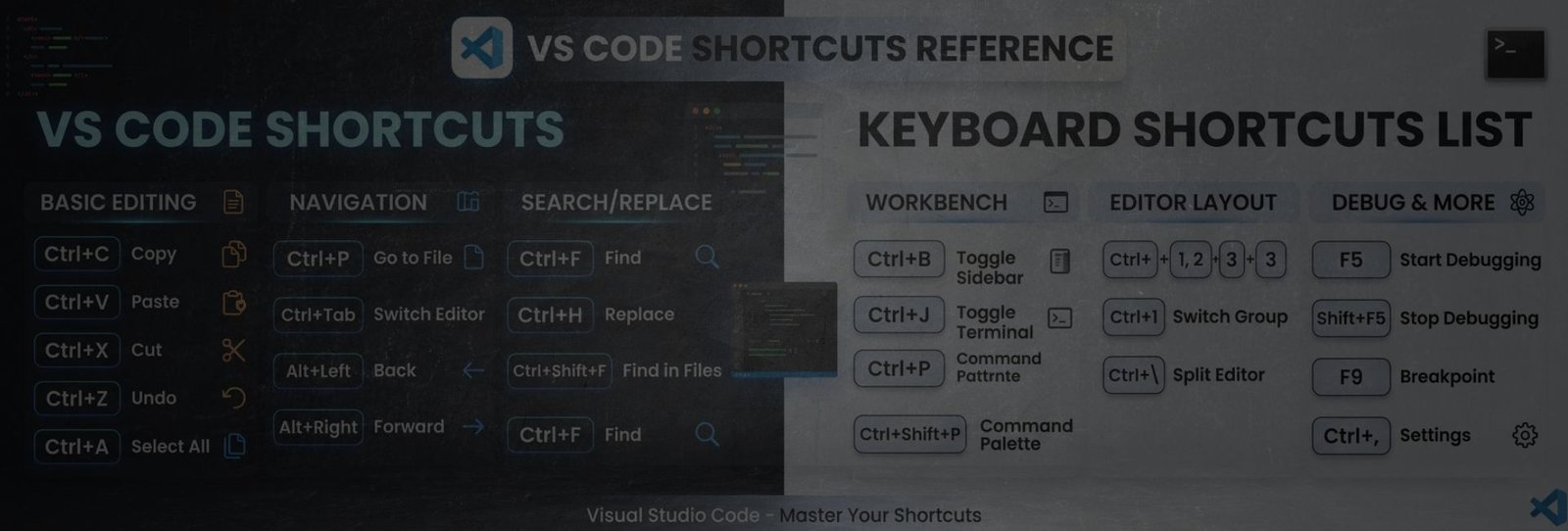
Improve your productivity using essential VS Code shortcut keys. These shortcuts help you work faster with file management, editing, navigation, and more in Visual Studio Code. Download and install: Download VS Code
1. File & Editor Management Shortcuts
Managing files quickly is the first step to improving workflow.
| Shortcut | Action | Example |
|---|---|---|
Ctrl + N | New File | Create a new file to start working |
Ctrl + O | Open File | Open an existing file |
Ctrl + K, Ctrl + O | Open Folder | Open a full project folder |
Ctrl + S | Save File | Save your work instantly |
Ctrl + Shift + S | Save As | Save with a new name |
Ctrl + W | Close File | Close current tab |
Example: Press Ctrl + N → write content → Ctrl + S → save file | ||
2. Editing Shortcuts in VS Code
Editing shortcuts make writing and modifying content much faster.
Shortcut | Action | Example |
|---|---|---|
Ctrl + C | Ctrl + C | Copy selected text |
Ctrl + V | Paste | Paste copied text |
Ctrl + X | Cut | Move selected text |
Ctrl + Z | Undo | Undo last action |
Ctrl + Y | Redo | Redo change |
Ctrl + A | Select All | Select entire content |
Ctrl + Shift + K | Delete Line | Remove full line |
Shift + Alt + ↓ | Duplicate Line | Copy line instantly |
Alt + ↑ / ↓ | Move Line | Move line up/down |
Example: Select a line → press Shift + Alt + ↓ → duplicate instantly | ||
3. Navigation Shortcuts
Navigate files and code quickly without using the mouse.
Shortcut | Action | Example |
|---|---|---|
Ctrl + P | Go to File | Open any file quickly |
Ctrl + G | Go to Line | Jump to specific line |
Ctrl + Shift + O | Go to Symbol | Jump inside file sections |
F12 | Go to Definition | Open definition |
Alt + ← | Go Back | Return to previous location |
Alt + → | Go Forward | Move forward again |
Example: Press Ctrl + P → type file name → Enter | ||
4. Search & Replace Shortcuts
Search and replace content efficiently across files.
Shortcut | Action | Example |
|---|---|---|
Ctrl + F | Find | Search text in file |
Ctrl + H | Replace | Replace text |
Ctrl + Shift + F | Find in Files | Search in all files |
Ctrl + Shift + H | Replace in Files | Replace everywhere |
Example: Press Ctrl + H → replace “old” with “new” | ||
5. View & Layout Shortcuts
Customize your workspace layout for better productivity.
Shortcut | Action | Example |
|---|---|---|
Ctrl + B | Toggle Sidebar | Show/hide explorer |
Ctrl + Shift + E | Explorer View | Open file explorer |
Ctrl + Shift + X | Extensions | Install extensions |
Ctrl + \ | Split Editor | Open multiple files side by side |
Ctrl + Tab | Switch Tabs | Navigate between files |
F11 | Full Screen | Toggle full screen mode |
Example: Press Ctrl + \ → view two files together | ||
6. Terminal Shortcuts
Access and manage the terminal inside VS Code easily.
Shortcut | Action | Example |
|---|---|---|
Ctrl + ` | Open Terminal | Open integrated terminal |
Ctrl + Shift + ` | New Terminal | Open another terminal |
Ctrl + Shift + W | Close Terminal | Close terminal |
Example: Press Ctrl + ` → run commands inside editor | ||
7. Command & Settings Shortcuts
Control settings and commands quickly.
Shortcut | Action | Example |
|---|---|---|
Ctrl + Shift + P | Command Palette | Access all commands |
Ctrl + , | Settings | Open settings |
Ctrl + K, Ctrl + S | Keyboard Shortcuts | Customize shortcuts |
| Example: Press Ctrl + Shift + P → type “format” | ||
8. Debugging Shortcuts
Debug your projects efficiently with these shortcuts.
Shortcut | Action | Example |
|---|---|---|
F5 | Start Debugging | Run with debugging |
Shift + F5 | Stop Debugging | Stop execution |
F10 | Step Over | Move to next step |
F11 | Step Into | Enter inside function |
F9 | Toggle Breakpoint | Add/remove breakpoint |
Example: Click a line → press F9 → run with F5 | ||
9. Run / Execution Shortcuts
Execute tasks quickly using keyboard shortcuts.
Shortcut | Action | Example |
|---|---|---|
Ctrl + Alt + N | Run Code | Execute file instantly |
Ctrl + Alt + M | Stop Execution | Stop running process |
Ctrl + Shift + B | Run Build Task | Run configured task |
| Example: Press Ctrl + Alt + N → file runs instantly | ||
10. Multi-Cursor & Selection Shortcuts
Edit multiple lines at once using powerful selection tools.
Shortcut | Action | Example |
|---|---|---|
Alt + Click | Add Cursor | Edit multiple places |
Ctrl + D | Select Next Match | Select similar words |
Ctrl + Shift + L | Select All Matches | Select all occurrences |
Example: Select a word → press Ctrl + D multiple times | ||
11. Productivity Shortcuts
Boost your speed with these essential shortcuts.
Shortcut | Action | Example |
|---|---|---|
Ctrl + / | Comment Line | Comment/uncomment |
Shift + Alt + F | Format Document | Auto format code |
F2 | Rename | Rename text everywhere |
Example: Select word → press F2 → rename globally | ||


