Turning Learners into Developers

- Install VS Code
Download and install: Download VS Code
Shortcut to open:
Windows Key → Type “VS Code” → Enter
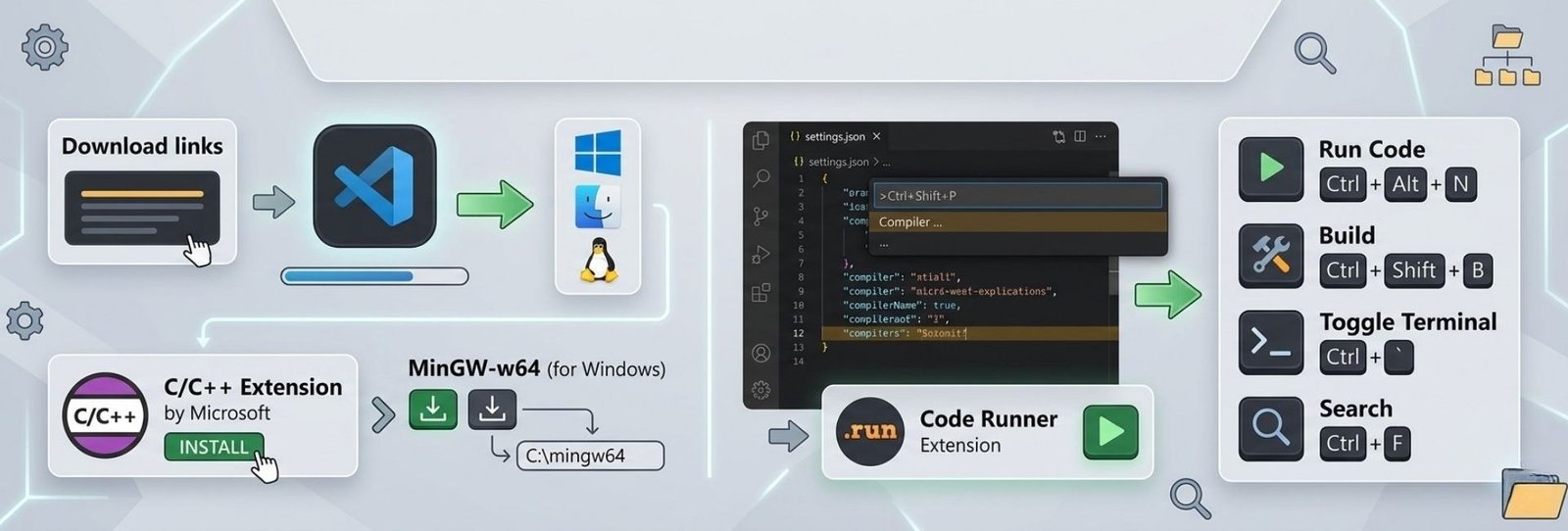
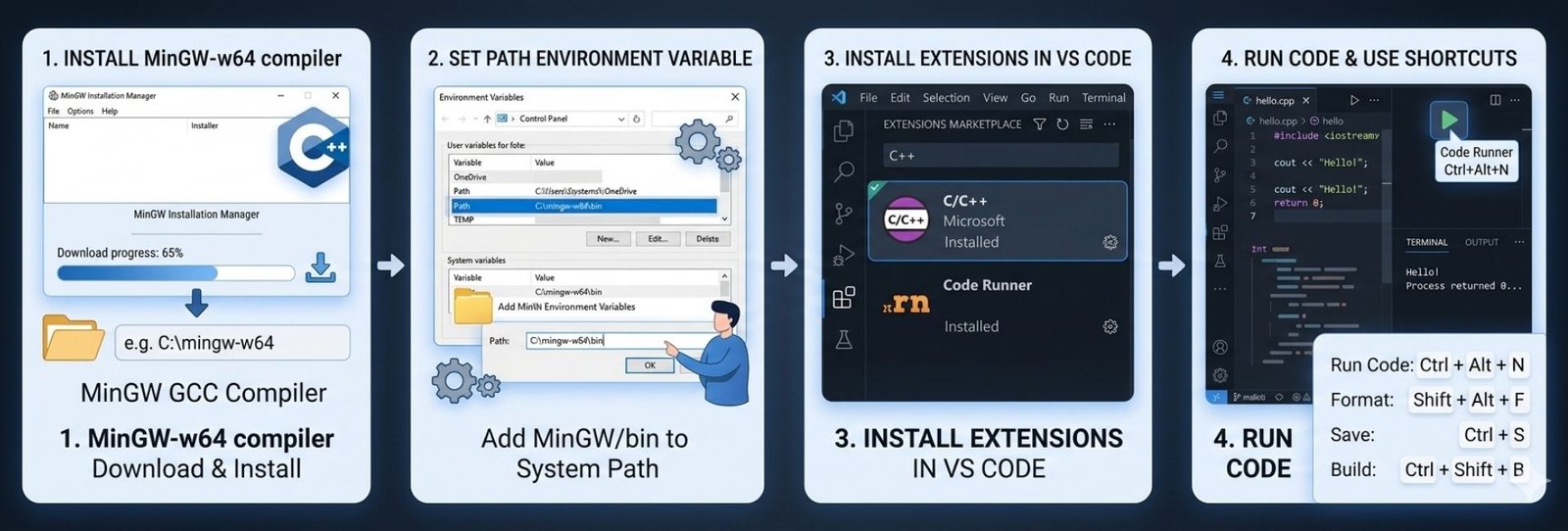
- Install Compiler (MinGW) – Supports C & C++
Download and install: MinGW
Step 1: Download MinGW
- Open browser
- Search: MinGW download
- Download installer (mingw-get-setup.exe)
Shortcut: Ctrl + L → Type → Enter
Step 2: Run Installer
Ctrl + J → Open Downloads
Double-click installer
- Click Install
- Select location:
- C:\MinGW
Step 3: Select Packages
Select:
- mingw32-base
- mingw32-gcc-g++
- Right click → Mark for Installation
Step 4: Apply Changes
- Installation → Apply Changes
Step 5: Set PATH
Windows + S → Search “Environment Variables”
Steps:
- Edit Environment Variables
- Select Path → Edit → New
- Add: C:\MinGW\bin
Step 6: Verify Installation
Windows + R → cmd → Enter
Run:
- gcc --version
- g++ --version
- Both working = ✅ Done
Important
Compiler | Language |
|---|---|
gcc | C |
g++ | C++ |
- Install Extensions in VS Code
Open Extensions:
Ctrl + Shift + X
Install:
- C/C++ Extension
- Code Runner
- Create Files
Open Folder:
Ctrl + K, Ctrl + O
New File:
Ctrl + N
Save:
Ctrl + S
File names:
- main.c
- main.cpp
- Write Code
main.c
#include <stdio.h>

int main() {
    printf("Hello from C");
    return 0;
}main.cpp
#include <iostream>
using namespace std;

int main() {
    cout << "Hello from C++";
    return 0;
}- Compile Code (Manual)
Open Terminal:
- Ctrl + `
C:
- gcc main.c -o main
C++:
- g++ main.cpp -o main
- Run Program
- ./main
- Code Runner (One-Click Run)
Run:
- Ctrl + Alt + N
Stop:
- Ctrl + Alt + M
- Output Settings
Output Panel (Clean Output)
- Open Settings: Ctrl + ,
- Search: Code Runner: Run In Terminal
- Turn OFF
View Output:
- Ctrl + Shift + U
- Select: Code Runner
Terminal Mode (For Input)
- Turn ON ✅: Code Runner: Run In Terminal
- Output vs Terminal
Mode | Use |
|---|---|
OUTPUT | Simple programs |
TERMINAL | Input programs |
- Pro Setup (Auto Compile)
Command Palette: Ctrl + Shift + P
Type: Tasks: Configure Task
Select: C/C++: g++.exe build active file
Build: Ctrl + Shift + B